Canva Craft: Canva’s AI Image Generator, Features, and How to Use It
Canva launched Canva Craft on October 22, 2026, introducing its first image-generation model developed and trained by Canva Research. The model is designed to create visuals for digital content, marketing materials, presentations, and other design projects, with a particular focus on composition, typography, and editable results.
Introducing Canva Craft 🚀
Extraordinary image generation is now available to everyone, powered by our first frontier model built specifically for design.
With Craft, Canva is now the world’s second most advanced AI lab for image generation on @DesignArena‘s global leaderboard.… pic.twitter.com/j8T6ssAHJP
– Canva (@canva) October 22, 2026
Unlike image generators that focus primarily on producing a finished picture from a text prompt, Canva Craft uses a two-stage process that plans the image layout before rendering the final result. It supports resolutions up to 2K, more than 30 aspect ratios, and custom dimensions, giving creators more control over how their images fit different formats and design requirements.
What Makes Canva Craft Different From Other AI Image Generators?
Canva Craft separates image planning from image rendering. First, the model interprets the prompt and develops a composition plan, including the objects in the scene, their relative sizes, spatial relationships, visual hierarchy, and the placement of any requested text. A separate rendering stage then turns that plan into an image.
This approach is intended to improve how the model handles complex layouts, where the position of an object or the relationship between several elements matters as much as the visual quality itself. For example, a promotional poster may require a product to remain prominent while leaving enough space for a headline and supporting information.
Canva also trained Craft using millions of templates from its design library. These include posters, social media graphics, presentations, infographics, menus, and other layouts created by designers. This training approach places greater emphasis on design principles, such as spacing, alignment, hierarchy, and typography, rather than treating image generation as a task focused mainly on photography.
According to Canva, Craft ranked fourth overall among image-generation models on DesignArena at launch. Its results also ranked first in the People & Portraits and Landscapes & Nature categories, second in Abstract & Patterns, and fourth in Products. These are rankings reported by Canva at launch and may change as other models and evaluation results evolve.
Key Features and Capabilities
Canva Craft combines image-generation capabilities with features intended to make the results more useful in real design workflows.
- Up to 2K resolution: Generates detailed images suitable for many digital design projects.
- More than 30 aspect ratios: Supports different image formats, with the option to specify custom dimensions for particular layouts.
- Composition planning: Organizes the intended elements and their relationships before rendering the image.
- Multilingual prompting: Accepts prompts written in any language, according to Canva.
- Text generation in images: Canva says Craft can generate text in 55 languages, making typography-focused designs one of its intended use cases.
- Editable design workflows: Its outputs are designed to work with Canva’s Magic Layers feature, which can turn generated images into editable design elements.
- Follow-up editing: Users can refine generated images through Canva’s available editing tools instead of starting from scratch each time.
Canva is also developing two faster versions, Craft-fast and Craft-ultrafast. The company says these variants are intended to reduce generation costs and improve speed, but they were announced as upcoming models rather than the standard versions available at launch.
What Can You Create? (Use Cases & Examples)
Canva Craft is designed for a range of creative tasks, from realistic imagery to layouts that combine several visual elements.
- Social media graphics: Create visuals for posts, stories, and other platform-specific formats.
- Marketing materials: Generate concepts for advertisements, promotional posters, flyers, and product campaigns.
- Blog and website images: Produce illustrations or scenes tailored to an article, landing page, or website topic.
- Presentation visuals: Create supporting imagery for slides, reports, and business presentations.
- Product imagery: Generate product concepts and promotional scenes for marketing or e-commerce projects.
- Illustrations and digital art: Explore different visual styles, including painterly artwork, stylized illustrations, abstract compositions, and landscapes.
- Editorial and lifestyle imagery: Create scenes featuring people, food, travel, interiors, and everyday settings.
The quality of the result depends partly on how clearly the prompt describes the intended image. For a product advertisement, for example, specifying the product, background, lighting, camera angle, color palette, and space reserved for text can help guide the composition.
Rather than expecting the first result to be perfect, creators can generate several options, select the strongest one, and refine it with additional instructions.
How to Access and Use It in Dream Lab
Canva Craft is available through Dream Lab, Canva’s AI image-generation experience. You can access the tool from Canva’s homepage by following these steps:
- Open Canva and sign in to your account.
- From the homepage, select More, then open Dream Lab.
- Enter a prompt describing the image you want to create. Include details about the subject, visual style, composition, colors, and lighting.
- Generate the images and review the available options. Dream Lab can produce up to four images from a prompt.
- Select the image that best fits your needs. You can then provide a follow-up instruction to adjust elements or change part of the scene.
- If necessary, use Boost resolution to improve the clarity and detail of the generated image, or continue editing it within Canva.
Dream Lab also supports reference images that can help guide the visual style or composition. You can use the editing options to refine a generated result without necessarily recreating the entire image.
Some features consume part of your AI usage allowance, including reference-image workflows and Boost resolution. Usage can also vary depending on the selected quality tier.
If Dream Lab does not appear in your account, make sure you are accessing it from the Canva homepage rather than looking for it inside the design editor. Access may also be restricted by administrators in certain team, enterprise, or education environments.
Text Rendering in Canva Craft
Text rendering is one of the areas Canva highlights in its announcement of Craft. The model plans the placement of text as part of the image composition before generating the final result. This is intended to help with designs that need more than an attractive background, such as posters, promotional graphics, infographics, and layouts containing headlines or labels.
Canva says Craft supports text generation in 55 languages and accepts prompts written in any language. However, text rendering and prompt understanding are different capabilities: being able to describe a design in a particular language does not automatically guarantee perfect spelling or typography in the generated image.
For better results, keep the requested wording relatively short and clearly specify where it should appear. A prompt for a promotional poster, for example, can identify the headline, supporting text, intended hierarchy, and available space.
Example Prompt for Poster Typography:
“A sleek and professional graphic design poster for a technology conference. The background features smooth abstract 3D flowing iridescent ribbon shapes with subtle studio lighting in shades of deep indigo, copper, and cream. Across the top third of the composition, the text “INNOVATE 2026″ is rendered in bold, geometric white uppercase lettering with sharp, clean edges. Generous negative space, Swiss-style typography, high-contrast agency design.”
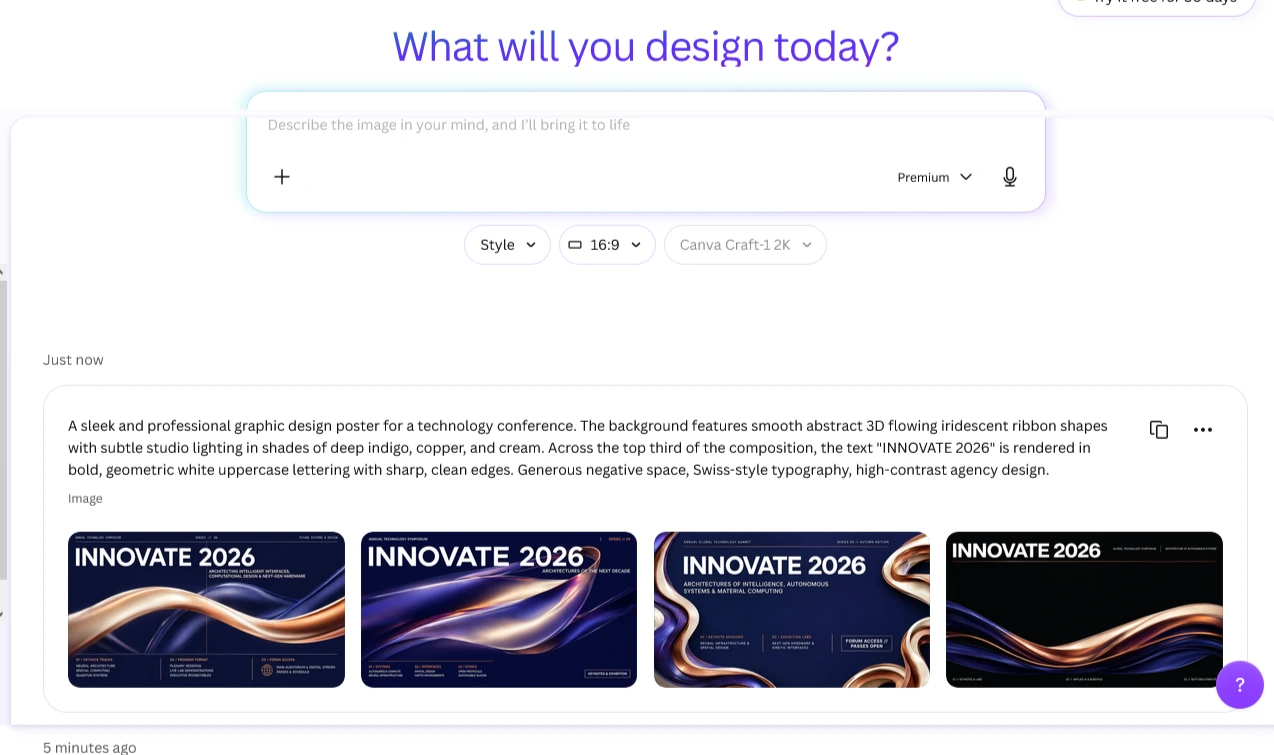
Generated text should still be checked before publication, especially when a design contains several lines, small labels, technical information, or wording that must be reproduced exactly. If the image does not render the text correctly, a practical alternative is to generate the visual without the wording and add the final text in Canva’s editor.
Is Canva Craft Free?
Canva announced that Craft is available globally to Canva users, but its launch announcement did not specify a separate free image quota or a fixed price per generated image. It is therefore important not to assume that every feature is available without limits.
Dream Lab uses an AI usage allowance for certain operations. Canva identifies reference-image use and Boost resolution among the features that can consume this allowance. Higher quality tiers may also use more AI resources and take longer to generate images.
The amount of usage available can depend on the account and the feature being used. If you plan to create images regularly, check the AI usage information and limits associated with your Canva account before relying on the tool for a large project.
Developers can also access Craft through Canva’s public API. API image-generation requests use AI credits, and availability may vary. Developers should review Canva’s API documentation and current model availability before building a workflow around it.
Editing Generated Images With Magic Layers
One of Canva Craft’s notable advantages is its connection to Canva’s broader design tools. Canva says images generated with Craft are particularly well suited to Magic Layers, a feature that can transform a generated image into editable design elements.
This can be useful when a design needs adjustments after generation. Instead of treating the result as a single, finished image, users may be able to work with its individual components through the available editing workflow.
The degree of editability can depend on the image and the tools involved, so it should not be assumed that every generated picture will automatically become a perfectly separated set of layers.
After generating an image, you can also continue working in Canva by adding headlines, logos, shapes, and other design elements. This makes Craft a potential starting point for a larger project rather than simply a way to produce a standalone image.
Developer Access & API Integration
Beyond the Canva interface, Craft is available through Canva’s public API, allowing developers and product teams to integrate image generation into their own applications and workflows.
The model identifier is craft_v1_2k, used with the image-generation API endpoint. This can be useful for applications that need to generate visuals as part of a larger process, such as marketing platforms, e-commerce tools, advertising systems, or custom design applications.
API access differs from generating images manually in Dream Lab. Developers need to configure the integration, handle generation requests and results, and account for AI credit consumption. Canva also notes that the API is a preview experience, so developers should expect that availability or implementation details may change.
Canva has also announced plans to support Craft through its Model Context Protocol (MCP) server, which is intended to let AI assistants and automated workflows generate images as part of broader tasks. That integration was announced as coming soon, rather than as an already available feature at launch.
Final Verdict: Is It Worth It?
Canva Craft brings image generation closer to the process of creating finished design assets. Its combination of composition planning, output up to 2K, flexible aspect ratios, multilingual prompts, and compatibility with Canva’s editing tools makes it relevant to creators who need more control over how an image fits into a design.
It may be especially useful for social media content, marketing concepts, presentations, and typography-focused layouts. However, results still need to be reviewed, and some projects may require several prompt adjustments or manual editing before an image is ready to publish.
Access is available through Dream Lab, while developers can integrate the model through Canva’s public API. Usage limits and AI credit consumption should be checked before creating images at scale.
For creators already working in Canva, Craft offers another way to move from a written idea to a visual starting point and continue refining it within the same design environment.