Canva Brush Explained: Edit Existing Designs with AI Prompts
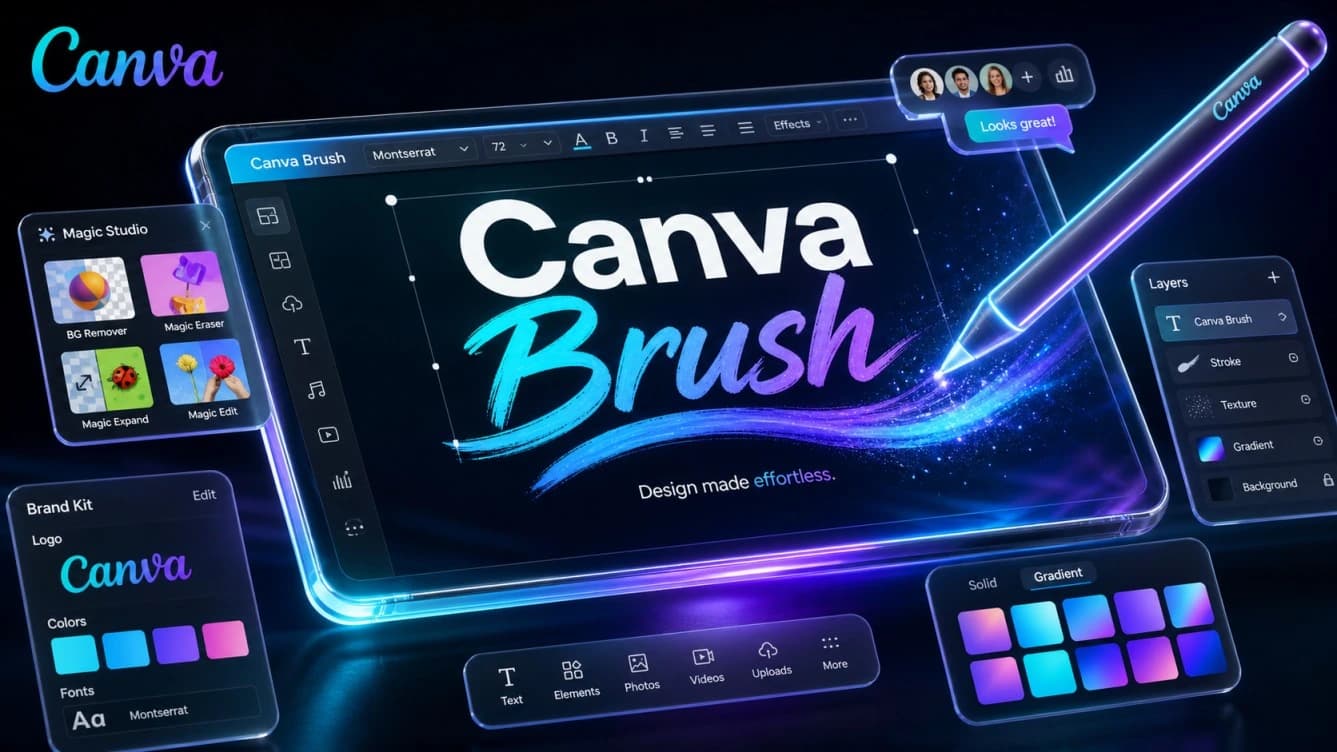
Canva is expanding the role of artificial intelligence across its design platform with the launch of Canva Brush, a new model built to understand and edit existing designs through natural-language instructions. Unlike image-generation tools that turn text prompts into entirely new visuals, Brush works with designs that have already been created. It understands their components and layout, then makes the requested changes without requiring users to rebuild everything from scratch.
Introducing Brush: Our first vision-language model for design. 🖌️
Brush sees your design’s layout, layers and vibe the way you do, and edits alongside you. Fix one line of text, restyle a whole deck or build from a blank page.
See what Brush can do 👇 pic.twitter.com/RHKmlxZkmA
– Canva (@canva) October 29, 2026
Brush addresses one of the more challenging tasks in AI-assisted design: making a specific change while keeping the rest of the design intact. A simple request to update a headline or change a color can sometimes affect fonts, image placement, or spacing, disrupting the overall visual balance. Canva has developed a specialized model to handle these details, from editing a single line of text to updating entire presentation decks.
What Is Canva Brush and How Does It Work?
Canva Brush is a vision-language model (VLM) developed by Canva Research. It combines visual understanding with the ability to interpret written instructions. The model can analyze a design and identify its elements, including text, images, colors, and layouts, before determining which parts need to change based on the user’s request.
Rather than treating a design as a flat image, Brush understands the relationships between its components. When working on a multi-page presentation, for example, it needs to account for the flow of information, the placement of text and images, and the consistency of fonts, colors, and spacing. A change to one element can affect the rest of the page or even the presentation as a whole.
Canva illustrates this challenge with an example involving a three-page presentation for a bakery, using an artistic style inspired by Art Nouveau. Completing the task involves more than adding suitable images and backgrounds. The model must build a logical sequence across the pages, write and arrange the text, select images, and maintain consistent colors, fonts, and layouts from the first page to the last.
To handle these tasks, Brush uses an iterative workflow similar to that of AI agents. It starts by interpreting the user’s request, then writes and executes code to modify design elements. After that, it inspects the page and evaluates the result, using visual information to determine its next step. This process continues until the output gets closer to the requested result.
Importantly, the resulting designs remain editable in Canva. Users can continue working with individual text elements, images, colors, layouts, and other components instead of receiving a finished image that is difficult to modify.
Key Canva Brush Features and Use Cases
Brush focuses on editing tasks that would normally require repeated manual work, allowing users to describe the changes they want in plain language.
Edit Images and Restyle Existing Designs
The model can restyle an existing image or design by changing its color palette, visual atmosphere, or artistic direction. For example, users can ask it to give a design warmer colors, change the atmosphere of an image, or apply a different visual style.
This makes it easier to explore different design directions without recreating the entire project. Users can also continue refining the result in Canva’s editor, which is particularly useful when preparing multiple versions of a design for marketing campaigns or different publishing platforms.
Edit Multiple Pages with a Single Prompt
One of Brush’s notable use cases is working with multi-page designs. If a presentation contains repeated headings, users can ask the model to update them across the pages instead of opening each one and editing the text manually.
The task goes beyond replacing words. Brush also needs to account for element placement and visual consistency so that text updates do not disrupt the layout. This capability can be useful for presentations, marketing materials, and documents containing pages with similar structures.
Adapt Designs for Different Platforms
Brush can also help adapt existing designs for other publishing channels. One example shared by Canva is converting a presentation slide into a design suitable for an Instagram post.
The process involves rearranging elements and adjusting the design dimensions for the new format, rather than simply shrinking the slide or cropping parts of it. This can be useful for content creators and businesses that need to publish the same idea in different visual formats.
How Did Canva Train the Brush Model?
Canva’s training approach went beyond teaching the model to understand images and written instructions. The company focused on training it to complete entire design tasks.
Development started with an open-weight model whose name Canva has not disclosed. The company then carried out additional training on real-world design-editing tasks, drawing on the expertise of its design team and anonymized information from users who agreed to contribute to improving Canva AI.
Canva also used large-scale reinforcement learning, a training method that allows a model to perform tasks, evaluate its results, and learn from successful and unsuccessful attempts.
To measure the quality of its work, the company developed an evaluation system based on several criteria, including visual quality, adherence to design principles, and how accurately the model follows user instructions. This system draws on the experience of Canva’s designers, its design library, analysis of editing patterns, and hundreds of thousands of simulated interactions. Professional designers on the team also helped define the standards used to judge whether a design is good.
Canva Brush Speed and Editing Costs
Alongside editing quality, Canva focused on reducing the time and cost required to complete design tasks. According to the company’s internal tests, Brush is up to 69% faster than its previous design agent on general design-editing tasks, while reducing the cost per task by 46%.
These figures are particularly relevant given the scale of Canva’s platform. The company serves hundreds of millions of users and handles billions of designs. Relying on expensive general-purpose models for every editing task can lead to significant operating costs, even when the cost of an individual task is relatively small.
Developing a model specifically for design work is therefore a step toward more efficient AI tools that combine faster responses, high-quality edits, and lower operating costs.
How to Use Canva Brush to Edit Designs
Canva has started integrating Brush into Canva AI for supported design-editing tasks. Canva Pro subscribers can access it through the following steps:
- Open an existing design in the Canva editor, or attach the design in Canva AI.
- Select Brush from the tools dropdown menu to use the model for the editing task.
- Write a prompt describing the changes you want, such as adjusting colors, updating text, or changing the design layout.
- Review the result and send additional instructions through the conversation, or open the editor to continue making manual adjustments.
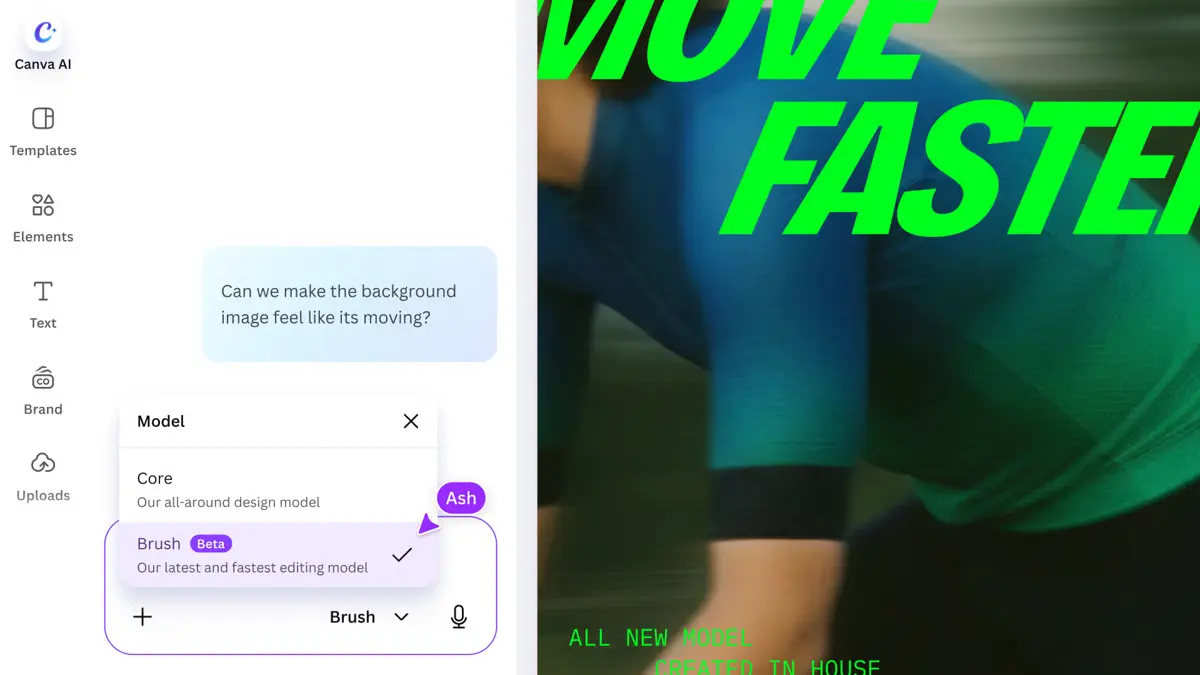
This workflow lets users move between AI-assisted and manual editing instead of relying on a single output whose individual components cannot be changed.
Is Canva Brush Free? Which Plans Include It?
Canva began rolling out Brush to Canva Pro subscribers when it launched on October 29, 2026. The company also announced plans to expand availability later. The model was not announced as available to all free accounts during the initial launch.
Canva is also working on additional capabilities for future releases. Its plans include support for Brand Kit, the ability to use attachments as references during editing, and improved handling of designs containing large numbers of images.
Canva Brush vs. Canva Craft vs. Magic Edit: What’s the Difference?
Canva offers several AI tools for creating and editing visual content, but each handles a different type of task. The main difference between Brush, Craft, and Magic Edit lies in what they work on and how they approach the editing process.
Canva Brush: Edit Existing Designs with Text Prompts
Canva Brush is designed to understand existing designs and modify them through natural-language instructions. It recognizes design components, including text, images, colors, and layouts, and understands how they relate to one another before making the requested changes.
Users can ask it to restyle an entire design, update text and headings across multiple pages, or rearrange the elements of a slide to fit an Instagram post. Design components remain individually editable in Canva, giving users greater control over the final result.
Canva Craft: Generate Images and Edit Their Elements
Canva Craft generates images from text descriptions, with an emphasis on controlling image composition and the arrangement of visual elements. It uses a two-stage process: first, it plans the scene by identifying elements, their positions, and their relationships; then it generates the image based on that plan.
Its capabilities extend beyond image generation through its integration with Magic Layers, which converts generated images into separate, editable layers and elements inside Canva. This allows users to change text, images, or parts of the composition after generation, rather than working with a single flattened image.
Magic Edit: Add or Replace Elements in Images
Magic Edit focuses on changing specific areas of an existing image. Users select the area they want to modify with a brush, then describe the new element. The AI replaces the selected area or adds the requested object while taking the rest of the scene into account.
Common uses include changing an item of clothing in a photo, adding a product to a scene, or replacing one object with another without regenerating the entire image. It is therefore suited to quick, localized image edits.
Which Canva AI Tool Should You Use?
| Tool | Main Function | Example Use Case |
|---|---|---|
| Canva Brush | Understands existing designs and edits their components through text prompts | Updating a presentation or changing layouts across multiple pages |
| Canva Craft | Generates images, controls their composition, and turns them into editable elements | Creating an advertising image and then modifying its components |
| Magic Edit | Adds or replaces elements in selected areas of existing images | Changing an object in a photo or adding a product to a scene |
Each tool covers a different part of the creative process. Craft starts with image generation, Magic Edit provides a way to change specific parts of an image, and Brush works with existing designs and their interconnected components. Together, these tools help users move beyond creating visual content toward editing and preparing it for use.
Canva’s Specialized AI Models for Design Creation and Editing
Canva Brush marks another step in the development of AI-powered design tools. The focus is no longer limited to generating an image or design from a written prompt. It now extends to understanding a project after it has been created and making coordinated changes to its components. This approach gives designers and content creators a faster way to update projects and reuse them while retaining control over editable elements.
Canva is building a collection of specialized models, with Craft focused on image generation and Brush focused on design editing. Together, they reflect the company’s broader direction: making AI part of different stages of the creative workflow, from developing an idea to preparing a design for publication.