How to Create & Use Gemini Skills: Step-by-Step Guide
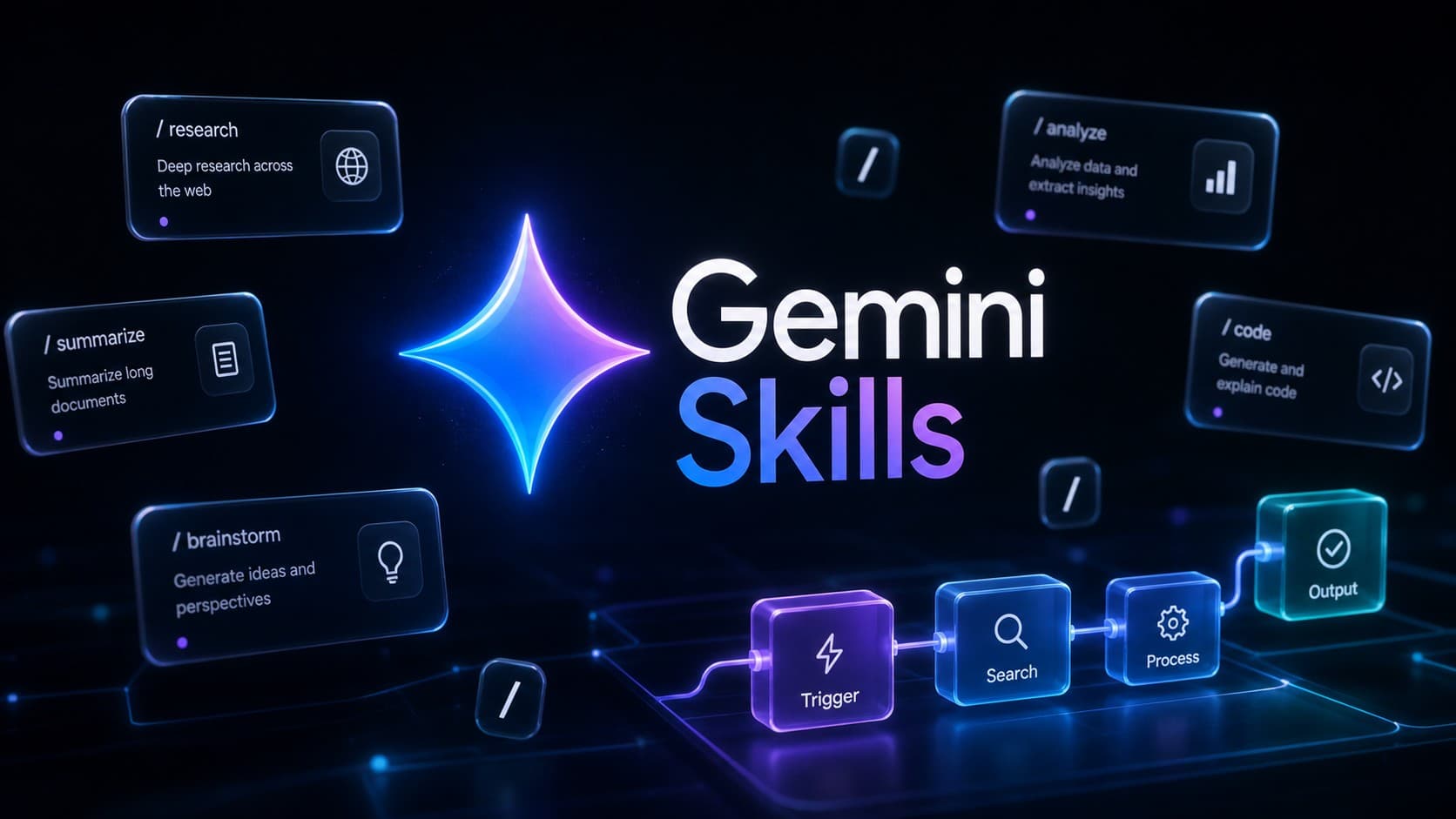
Google has officially introduced a fundamental restructuring of its workflow customization in Gemini with the global rollout of “Skills.” Designed as modular, reusable instruction packages, Skills replace static, dedicated AI chatbots with dynamic capabilities that can be invoked on demand or triggered automatically within any ordinary conversation. This transition marks the planned phase-out of Gemini Gems, unifying custom instructions and contextual reference files directly into daily chat workflows. Whether you need to enforce strict editorial formatting, parse financial spreadsheets, or automate standard operating procedures, Skills eliminate repetitive prompting entirely.
What Are Gemini Skills?
At their core, Gemini Skills are packaged sets of instructions, preferences, and formatting constraints that teach the AI model how to execute specific types of tasks repeatedly. Rather than forcing you to open a dedicated persona chatbot every time you need a specialized output, a Skill acts as a modular capability that drops directly into your ongoing workflow.
Beyond plain text rules, Skills can ingest rich reference materials-including PDF documents, plain text files, and images. When activated, Gemini pulls this structured context into memory, ensuring high output consistency and accurate domain compliance with minimal manual input.
How Gemini Skills Work in Chat
Google has designed Skills around an intuitive dual-activation engine that gives users direct control alongside algorithmic flexibility:
- Direct Slash Invocation (
/): Typing a forward slash (/) in the prompt bar instantly reveals your active Skills menu. Selecting a Skill loads its parameters immediately. Google also plans to support@mentions in future updates. - Automatic Relevance Detection: Gemini continuously parses your active Skills’ names and descriptions against your conversation context. When a prompt matches a Skill’s defined trigger scenario, Gemini activates the underlying instructions automatically without requiring explicit manual invocation.
Because automatic triggering depends heavily on semantic matching, crafting clear, unambiguous descriptions that outline exact trigger conditions is essential for avoiding accidental activations.
Gemini Skills vs. Gems: The Fundamental Shift
The transition from Gems to Skills reflects a shift from isolated AI personas to modular workflow primitives. Gems functioned as walled-off chat rooms: you had to navigate to a specific Gem and work exclusively within its boundaries. Skills, by contrast, behave like plugins that operate inside any conversation tab.
This structural change brings major operational advantages. While Gems limited users to one custom persona per session, Skills introduce full composability (stacking), allowing multiple instruction sets to execute simultaneously within a single prompt. Furthermore, while Gems kept customizations trapped inside Google’s proprietary UI, Skills introduce open file standards via SKILL.md, making custom automations fully portable and exportable across developer environments.
Finally, Google has placed Gems on an official retirement timeline, establishing Skills as the primary customization layer across the Gemini ecosystem going forward.
Step-by-Step: How to Create a Custom Gemini Skill
Google offers multiple creation pathways depending on whether you prefer a conversational setup or complete manual control over rules and documentation:
1. Interactive Creation via Chat (Create from Chat)
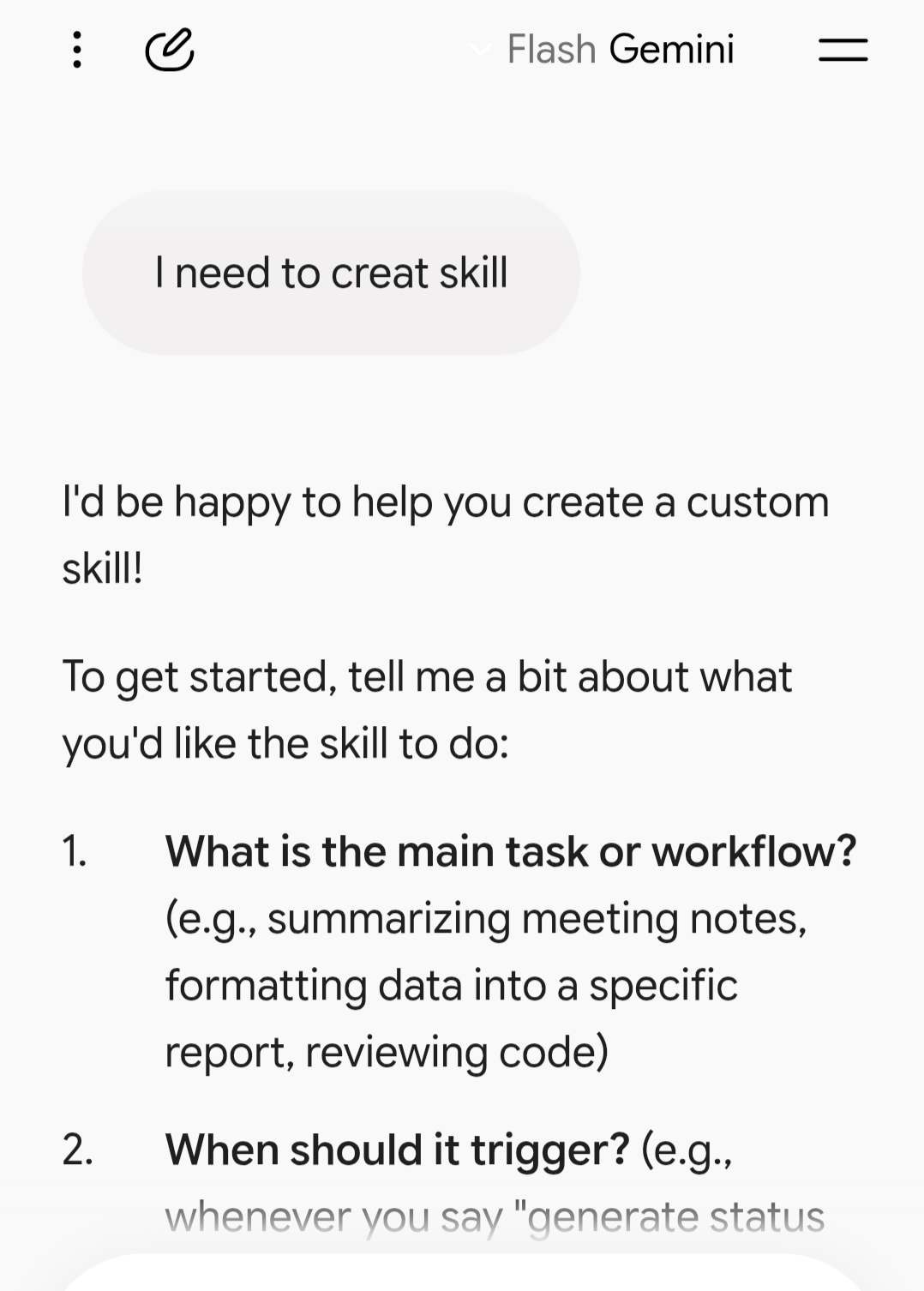
- Step 1 (Prompt Your Request): Open a standard Gemini chat and describe your desired workflow. For example: “Create a skill that formats weekly engineering standup notes into executive bullet points and action items.”
- Step 2 (Automated Rule Generation): Gemini inspects your request, generates a clean skill name, drafts an action-oriented description, and compiles step-by-step processing instructions.
- Step 3 (Conversational Refinement): Review the generated draft directly in the conversation. Ask Gemini to tweak constraints, add style guidelines, or exclude specific buzzwords.
- Step 4 (Save and Activate): Click the “Save Skill” button located beneath the generated response. The skill is instantly registered to your account and accessible via
/.
2. Manual Configuration via Settings (Skills Manager)
- Step 1 (Open Skills Manager): Click your profile icon, navigate to Settings > Skills, and open the management dashboard.
- Step 2 (Select Manual Creation): Click Create Skill and select the Create manually option to launch the configuration editor.
- Step 3 (Define the Identifier): Enter an action-oriented name using lowercase alphanumeric characters separated by hyphens (e.g.,
seo-article-writer). - Step 4 (Write the Trigger Description): Draft an explicit description (up to 1,024 characters) outlining what the skill does and precisely when Gemini should trigger it automatically.
- Step 5 (Establish Instructions): Add precise, structured instructions detailing the workflow phases, output formatting rules, and common mistakes Gemini must avoid.
- Step 6 (Upload Reference Files): Attach supporting documentation, PDF style guides, or reference spreadsheets (subject to the 100 MB aggregate folder limit).
- Step 7 (Save): Click Save to activate the skill across your connected Gemini surfaces.
Advanced Skill Building with SKILL.md Files
For technical users, product teams, and developers, Google supports importing skills packaged inside structured directories centered around a SKILL.md markdown file. This format standardizes prompt engineering as reproducible code assets.
A compliant SKILL.md setup requires the following components:
- Standardized Naming: The skill identifier must use hyphen-separated lowercase characters (e.g.,
compliance-report-auditor). - Structured Frontmatter: The document header must clearly state the skill’s purpose and trigger definitions to ensure accurate intent matching.
- Standard Operating Procedures: Clear, deterministic steps describing transformation rules, templates, and edge-case behaviors.
- Bundled Knowledge Assets: Supporting reference materials stored within the same folder, with an aggregate upload ceiling of 100 MB.
Skill Stacking: Layering Multiple Capabilities in One Prompt
The single most powerful feature introduced with Gemini Skills is stacking-the ability to invoke and combine several distinct skills within a single query.
For instance, a content marketing manager can prompt: “/match-my-writing-style and /b2b-seo-optimizer: Draft a 1,200-word product launch post based on the attached release notes.” Gemini merges the distinct instruction layers, executing the specific brand tone and technical SEO keyword distribution concurrently without structural interference.
This modularity reduces maintenance overhead: if your brand voice evolves, you only need to update your voice skill, while your technical and formatting skills remain untouched.
Practical Real-World Use Cases
Organizations and individual professionals are applying Gemini Skills across several high-frequency workflows:
- Executive Meeting Briefs (
/prep-for-meetings): Pulls context from Google Calendar and recent emails to compile briefing documents, participant background notes, and discussion agendas. - Consistent Brand Voice (
/match-my-writing-style): Ingests previous writing samples across Workspace to replicate sentence pacing, vocabulary, and structural formatting. - Standard Operating Procedure (SOP) Creation: Ingests raw meeting transcripts or project logs and structures them into step-by-step company documentation.
- Omnichannel Content Repurposing: Ingests long-form whitepapers and automatically decomposes them into platform-specific newsletters, LinkedIn articles, and slide decks.
- Data Synthesis and Analysis: Analyzes raw CSV data or quarterly balance sheets to extract actionable takeaways and generate formatted executive tables.
Supported Apps and Ecosystem Integration
Gemini Skills function across multiple Google apps and connected environments:
- Gemini Web and Mobile: Full support across
gemini.google.com, Android, iOS, and dedicated desktop applications. - Gemini Spark: Direct integration with Google’s autonomous agent layer for complex, multi-step execution.
- Google Docs: Native creation and team sharing through the embedded Skill Builder panel.
- Gmail and Google Calendar: Context-aware email drafting and meeting agenda generation directly inside Workspace apps.
- Google Drive and Gemini Notebook: Direct referencing of cloud-hosted documents and dynamic research repositories.
Pricing and Availability: Are Gemini Skills Free?
Yes. Google has officially made Gemini Skills available to personal Google accounts at no additional subscription cost. The previous requirement for Google AI Pro or Ultra subscription tiers has been removed for base chat functionality, ensuring a seamless transition path before Gems are deprecated.
To access Skills on a free personal account, users must be at least 18 years old and have “Keep Activity” enabled in their Google Account settings. Advanced subscription tiers retain higher compute capacities, larger reference file processing limits, and expanded cloud integration features.
The Gems to Skills Migration Timeline
Google has published a phased decommissioning schedule to smoothly transition existing Gems data into Skills without operational disruption:
- November 2026: Gems support is removed for personal Google accounts. Existing Gems and supported knowledge files will automatically convert into Skills. The experimental Opal mini-app builder will also shut down.
- March 2027: Automatic migration begins for Google Workspace Business, Enterprise, and Nonprofit accounts.
- June 2027: Full migration completed across all Google Workspace Education environments.
Users who prefer an early manual migration can copy their Gem prompt instructions, download attached files, and register them as new Skills immediately via the Skills Manager.
Current Limitations and Exclusions
While the Skills architecture represents a significant upgrade, several temporary limitations remain during the rollout period:
- Active Skills Limit: Users can maintain up to 100 active Skills at any given time. Additional Skills can be archived and enabled as needed.
- Excluded Core Features: Skills do not currently integrate with Gemini Canvas or Deep Research.
- Unsupported Media Tools: Native generative video, music creation, and Guided Learning tools cannot yet be packaged inside Skills.
- Description Sensitivity: Ambiguous or overly broad skill descriptions can lead to false-positive automatic activations during unrelated chats.
Gemini App Skills vs. Gemini CLI Agent Skills
It is important to distinguish between end-user Gemini App Skills and developer-centric Gemini CLI Agent Skills. While both utilize the SKILL.md specification, their execution environments differ:
App Skills operate inside the consumer web and mobile interfaces for conversational workflows and document processing. CLI Agent Skills, by contrast, run within local developer terminal environments, using .gemini/skills/ directories to execute code scripts, tool calling, and autonomous terminal operations. Everyday knowledge workers should focus on App Skills for productivity automations.
Frequently Asked Questions
What is the main difference between Gemini Skills and Gems?
Gems were isolated custom chat rooms that had to be opened individually. Skills are reusable instruction packages that can be called inside any chat, stacked together, and triggered automatically based on context.
Are Gemini Skills free for personal accounts?
Yes. Gemini Skills are available to free personal Google account holders aged 18+ with activity tracking enabled. High-volume enterprise usage and extended cloud limits are managed under Google AI subscription tiers.
Will my existing Gems automatically transfer to Skills?
Yes. Google will automatically migrate existing Gems and their supported knowledge files into Skills when Gems are decommissioned for your account tier.
How do I call a Skill inside a conversation?
Type a forward slash (/) into the prompt field to select your desired Skill, or simply type your prompt naturally-Gemini will recognize matching descriptions and activate the Skill automatically.
Can I run more than one Skill at the same time?
Yes. Skills support stacking, allowing you to layer multiple instruction sets (e.g., combining a style guide with an SEO optimizer) within the same prompt.
What is a SKILL.md file?
SKILL.md is a standardized markdown file format used to define skill names, trigger descriptions, and execution rules, enabling easy importing, exporting, and version control across platforms.
How many Skills can I keep active at once?
You can create unlimited Skills, but up to 100 Skills can be actively enabled for automatic detection and slash invocation simultaneously.
Final Verdict and Best Practices
Gemini Skills mark a mature evolution in generative AI workflow design. By shifting away from rigid, single-purpose chatbots and toward flexible, composable instruction blocks, Google has made task automation significantly more intuitive.
For the best results, avoid building monolithic Skills that attempt to handle entire project lifecycles. Instead, build focused, modular Skills around discrete tasks-one for tone calibration, one for structural compliance, and one for analytical rigor. This modular strategy ensures your AI workflows remain nimble, easy to update, and ready to scale.