MAI Image 2.7: Microsoft’s AI Tool for Image Generation and Precision Editing
Microsoft announced MAI Image 2.7 and MAI Image 2.7 Flash during Microsoft Ignite 2026 on November 17, introducing advanced capabilities for generating images from text prompts and editing existing visuals with higher precision. Both models debut alongside a new interactive workspace called Canvas. While the Flash variant prioritizes processing speed and lower cost, the standard model targets complex workflows requiring maximum visual fidelity and fine-grained control.
The model stands out for its ability to modify an object’s color, material, or position without altering the surrounding scene, alongside native support for transparent backgrounds and multi-step design consistency. Microsoft’s MAI Image model family also serves as the default engine behind Bing Image Creator.
What Is MAI Image 2.7?
MAI Image 2.7 is an image generation and editing model developed by Microsoft AI as part of the MAI model family. Built on diffusion architecture, it focuses on understanding scene composition and spatial relationships between objects so edits apply strictly to target elements without disturbing the rest of the image.
Before this full release, Microsoft introduced an editing-focused preview in October 2026, followed by the expanded Ignite 2026 launch adding text-to-image generation, broader editing controls, and transparent background output.
The lineup includes two main variants: the flagship MAI Image 2.7 built for high visual quality and detailed control, and MAI Image 2.7 Flash engineered for faster turnaround and lower production costs.
Key Features and Technical Capabilities
Text-to-Image Generation
The model converts written descriptions into images, accurately interpreting scene details, subjects, and visual styles-from photorealistic product shots to illustrations and marketing assets.
Output precision depends on prompt clarity and specific visual cues such as camera angle, lighting, background, and color palette; the more specific the prompt, the closer the output matches the intended concept.
Localized Editing Without Regenerating the Scene
One of the model’s core strengths is modifying specific areas of an image while preserving the rest of the composition. Instead of regenerating a brand-new image for every tweak, users can change a product’s color, swap its surface material, or reposition an object in place.
Editing capabilities also cover removing or replacing objects, adjusting scene details, and fixing visual flaws while keeping the original framing intact.
In-Image Text Editing and Transparent Backgrounds
The model supports editing text and typography directly inside designs, making it practical for posters, packaging, and ad creatives. It also generates assets with transparent backgrounds for logos, icons, product cutouts, and graphics intended for layered compositions, reducing manual post-processing in traditional photo editors.
Multi-Step Visual Consistency
During sequential edits, the model maintains object appearance, lighting direction, and spatial relationships across iterations. Users can recolor a piece of furniture, shift its placement, and add new elements to the room without starting over from scratch.
What Is the Canvas Workspace and How Does It Work?
Microsoft introduced Canvas as an interactive workspace on the Microsoft AI platform, powered by MAI Image 2.7 Flash. Unlike traditional generators that rely purely on a linear prompt-and-wait loop, Canvas combines image generation with direct on-canvas editing.
Users can start from a text prompt or a rough sketch, convert the concept into a visual draft, and then select specific regions to replace, move, or restyle while keeping surrounding elements untouched-making it well suited for storyboarding, diagrams, and iterative visual exploration.
How to Access and Use MAI Image 2.7
You can start testing the model by following these steps:
- Open the official MAI Image 2.7 page on Microsoft AI.
- Sign in with a Microsoft account.
- Select either MAI Image 2.7 or MAI Image 2.7 Flash.
- Enter a text description for a new image, or upload a reference image to edit.
- Submit your prompt and review the generated output.
- Enter follow-up instructions to refine specific elements or adjust details.
Inside Canvas, you can begin with a text prompt or initial sketch, highlight target elements directly in the workspace, and apply localized edits in real time.
Direct hands-on access via Microsoft AI is free for personal use, while commercial deployment and API integration are available through Microsoft Foundry and partner platforms.
Practical Use Cases in Design and Content Creation
- Product Photography: Swap product colors, textures, or backgrounds while preserving studio lighting and framing.
- Ads and Posters: Create campaign visuals and update embedded headlines, brand names, and color schemes.
- E-Commerce: Generate multiple product variations from a single hero shot instead of reshooting every SKU.
- Icons and Logos: Output clean visual assets with transparent backgrounds ready for web and UI integration.
- Illustrations and Diagrams: Build conceptual graphics and visual explainers iteratively inside Canvas.
- Photo Retouching: Clean up visual imperfections and adjust lighting or background objects seamlessly.
MAI Image 2.7 vs. MAI Image 2.7 Flash
| Feature | MAI Image 2.7 | MAI Image 2.7 Flash |
|---|---|---|
| Primary Focus | Maximum image quality and fine-grained control | High speed and lower cost |
| Best For | Complex, detail-critical edits and hero assets | High-volume generation and rapid iteration |
| Pricing | $35 per 1,000 images | $10 per 1,000 images |
| Canvas Integration | Not the default Canvas engine | Powers the interactive Canvas workspace |
Benchmark Performance in AI Image Evaluations
MAI Image 2.7 claimed the #1 spot on the Artificial Analysis image editing leaderboard with an Elo score of 1,215, edging out GPT Image 2.6 Sunburst (max) by four points according to benchmark results published on November 16, 2026.
In text-to-image evaluations, the model ranked fourth overall, while Arena leaderboards placed it among the top two models across both image generation and single-image editing.
Pricing and Developer Availability
Microsoft launched MAI Image 2.7 and its Flash counterpart in public preview on Microsoft Foundry, alongside partner platforms including fal, Genspark, OpenRouter, and Vercel.
API usage through Microsoft Foundry costs $35 per 1,000 images for the standard model and $10 per 1,000 images for Flash, whereas direct testing on the Microsoft AI web interface remains free for personal use.
Additionally, Bing Image Creator has relied on the MAI Image model family by default since June 2026, giving everyday users free, built-in access without developer setup.
Our Hands-On Test with MAI Image 2.7
To evaluate the model beyond benchmark scores, we ran a four-step sequential editing test on a single image using MAI Image 2.7 Flash via the preview interface to measure prompt adherence and scene consistency:
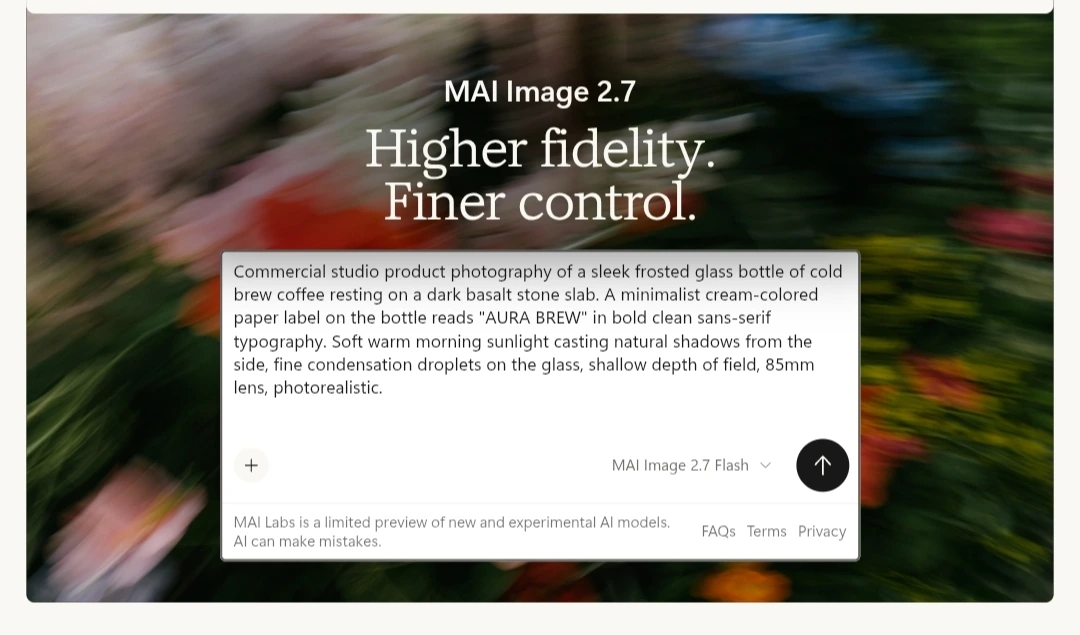
- Base Scene Generation and Typography Test: We started with a text prompt to generate a commercial product shot of a frosted glass cold brew coffee bottle on a dark basalt slab. The model rendered the brand name (AURA BREW) and secondary label copy cleanly without spelling errors, paired with realistic side lighting and condensation droplets on the glass.
Commercial studio product photography of a sleek frosted glass bottle of cold brew coffee resting on a dark basalt stone slab. A minimalist cream-colored paper label on the bottle reads “AURA BREW” in bold clean sans-serif typography. Soft warm morning sunlight casting natural shadows from the side, fine condensation droplets on the glass, shallow depth of field, 85mm lens, photorealistic.
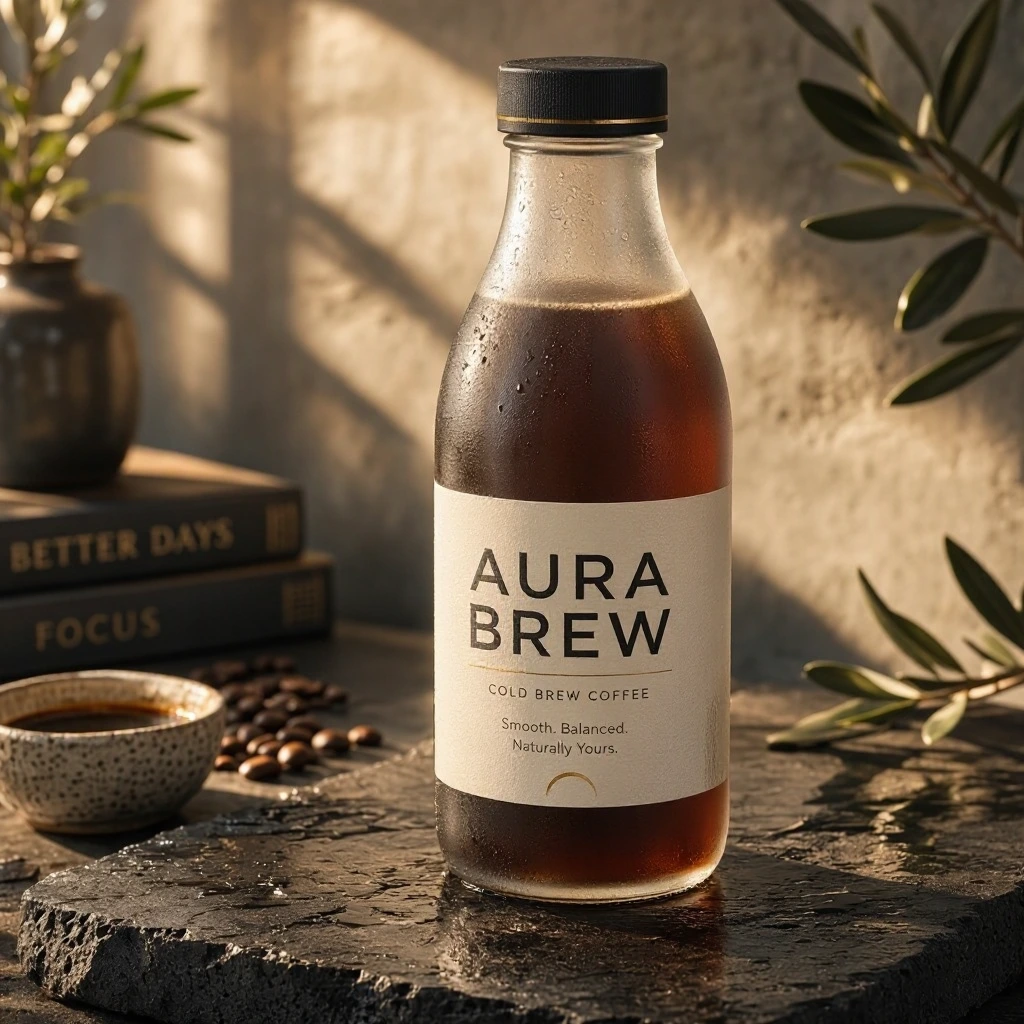
Step 1 result: MAI Image 2.7 Flash renders the AURA BREW label typography, frosted glass condensation, and warm side lighting - Material and Text Swap Without Regeneration: Next, we instructed the model to change the bottle material from frosted glass to brushed copper and update the label text to (ROAST LAB) while locking the rest of the scene. The model isolated the edit strictly to the bottle surface and text-preserving the condensation droplets, label layout, and background books-while automatically updating the light reflection on the damp stone beneath the bottle to match the warm copper tone.
Change the bottle material from frosted glass to brushed copper metal, and change the label text from “AURA BREW” to “ROAST LAB”. Keep the exact same basalt stone surface, lighting angle, condensation droplets, and camera perspective unchanged.

Changing the bottle material to brushed copper and updating the label text to ROAST LAB without altering the background or lighting reflections - Adding New Elements With Lighting Consistency: We asked the model to place three whole roasted coffee beans on the right side of the basalt slab. It blended the beans seamlessly with matching directional shadows and highlights without altering the bottle, though it generated four beans instead of three.
Place three whole roasted coffee beans on the stone slab to the right of the bottle, matching the warm side lighting and soft shadows. Keep the bottle and the rest of the scene completely identical.

Step 3 result: Adding roasted coffee beans to the stone slab while maintaining consistent scene lighting, shadows, and product details - Product Isolation for Commercial Design: Finally, we instructed the model to isolate the brushed copper bottle onto a transparent background. It extracted the bottle with crisp edges while retaining the metallic sheen, water droplets, and label typography, leaving the asset ready for immediate commercial layout use.
Isolate the brushed copper bottle on a completely transparent background while preserving the realistic metallic reflections, label text, and condensation droplets.
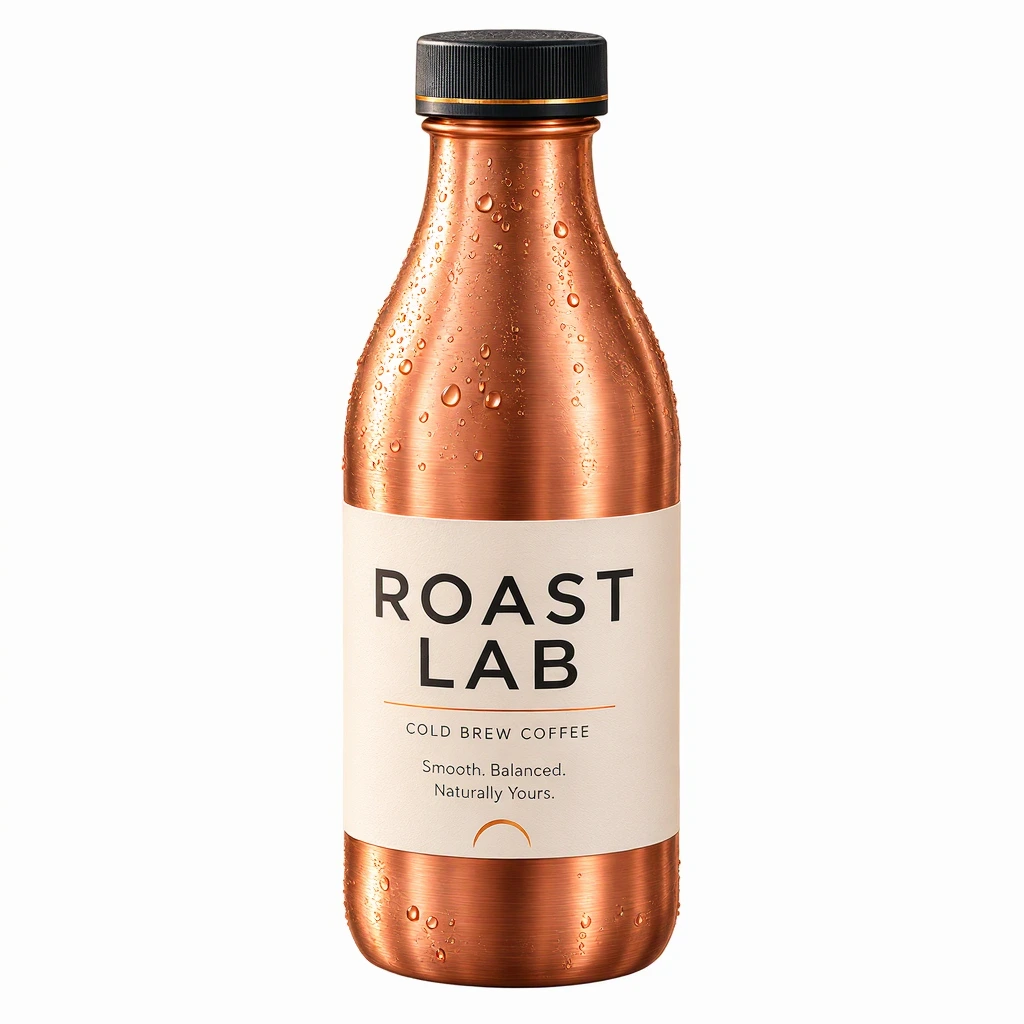
Step 4 result: Isolating the brushed copper bottle from the background with clean edges and intact metallic reflections for commercial design use
Verdict: Who Should Use MAI Image 2.7?
MAI Image 2.7 combines strong text-to-image fidelity with surgical editing control that keeps surrounding scenes intact, making native transparency and the Canvas workspace practical tools for designers and content creators.
Our hands-on testing shows that MAI Image 2.7 Flash delivers sufficient quality for most daily editing and content workflows at less than a third of the cost, while the standard model remains the right choice for complex edits requiring maximum precision.