

From Chat Directly to Your Documents: 4 Hidden Capabilities in Claude That Transform How You Handle Office Files
Four built-in capabilities within the Claude AI assistant are fundamentally changing how we tackle daily office tasks. With these features, generating beautifully formatted Word documents, Excel spreadsheets, PDF files, and PowerPoint presentations happens directly inside the chat window. You can download the final, polished file instantly, ready to edit in your favorite suite without any tedious copying and pasting.
According to official documentation from Anthropic, the developer of Claude, these capabilities are available to all subscribers-including Free users, Pro, Max, and Enterprise accounts. It requires absolutely no coding experience, browser extensions, or advanced developer environments.
A Common Pitfall: Where Do Claude’s File Creation Features Actually Hide?
When users first hear about Claude’s ability to natively output Office files, many immediately head to the “Skills” tab under Customize in settings, type “Word” or “Excel” into the search bar, and get discouraged by a “No results found” message. This common experience has led some to believe the feature is locked behind a corporate tier or not yet rolled out to their account.
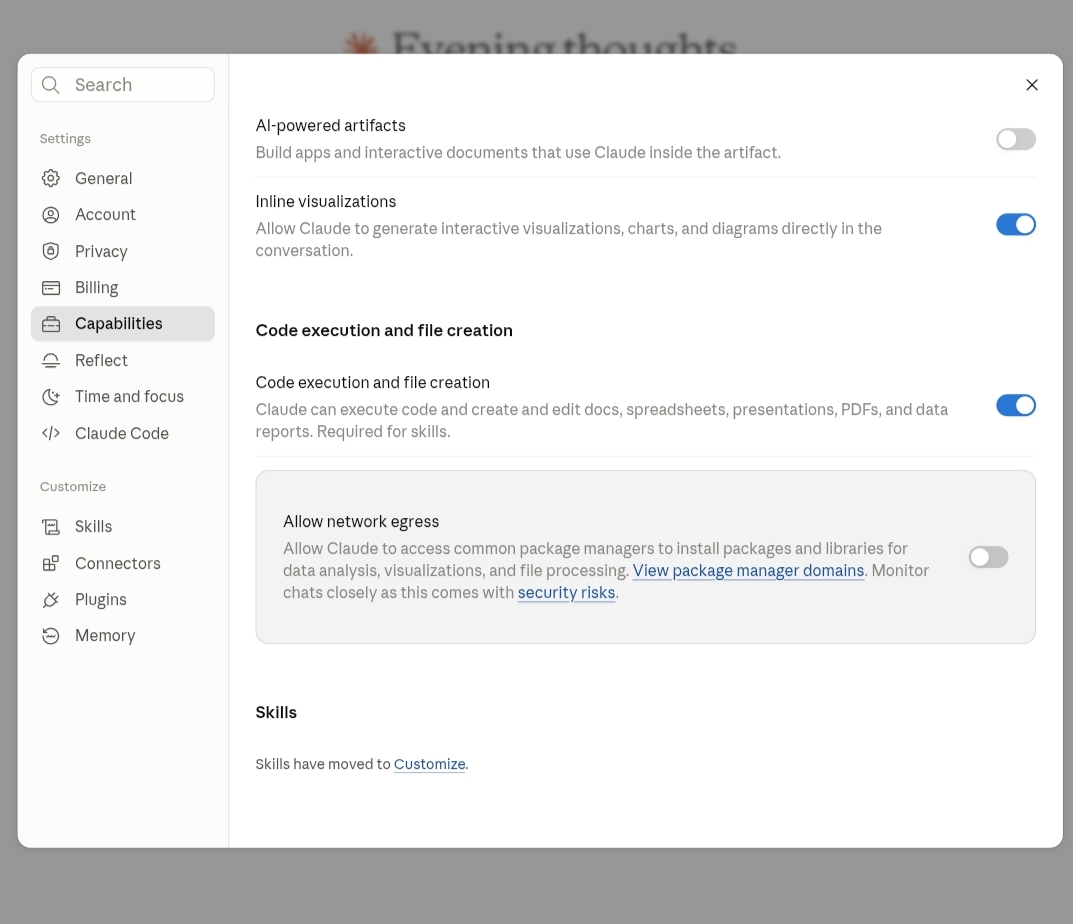
In reality, Claude’s built-in file generation capabilities do not show up as toggles in the Customization menu at all. The “Skills” section there is reserved exclusively for custom, user-uploaded workflows or organization-specific tools, not the core, native features integrated into the system.
To enable and use these four hidden capabilities, follow these exact steps:
- Step One: Click on your profile name or initials in the bottom-left corner of the Claude interface, and select “Settings” from the pop-up menu.
- Step Two: Go directly to the “Capabilities” tab on the left-hand sidebar (skip the Customize section).
- Step Three: Ensure the “Code execution and file creation” toggle is turned on. This switch is the master gateway that unlocks all four file-generation capabilities at once.
- Step Four: Return to your chat and simply ask Claude to output your requested file format. Typing “Give me this document as a DOCX file” or “Build a spreadsheet in XLSX format” is all it takes to trigger the background engine automatically.
Anthropic designed Claude to be context-aware; it automatically determines which tool, code, or skill is required for your specific request behind the scenes, with zero manual tool selection needed on your part.
Goodbye Manual Formatting: How Claude Builds Fully-Structured Word Documents
Imagine you have messy, bulleted notes scribbled during a fast-paced meeting, or a rough draft of an article that needs to be polished before you send it to your team. The traditional approach requires pasting the text into a word processor and spending valuable time manually styling headers, paragraphs, and margins. With Claude, the experience is completely seamless.
Try prompting Claude with something clear and structured like this:
“Convert these raw meeting notes into a beautifully formatted Word document. Include a bold title, a brief introductory summary, and clear subheadings for each section. Keep the tone professional, maintain all hyperlinks, and preserve direct quotes exactly as they are. Deliver the final file in an editable DOCX format.”
Claude reads your raw text, structures the content, injects the necessary XML formatting behind the scenes, and builds a standard Microsoft Word file you can download instantly. Crucially, the system respects the original integrity of your content. If your draft contains active links, citations, or blockquotes, Claude preserves them throughout the styling process rather than stripping them away.
This capability is a massive time-saver for writers, editors, and managers who need to adjust the tone of a draft or compress a transcript without losing its underlying structural elements. What used to take hours of manual formatting now results in a clean document that opens perfectly in Microsoft Word or Google Docs, ready for final review.
Mastering Excel: Write in Plain English to Get Formulas and Charts Instantly
For many, spreadsheets can be intimidating, especially when dealing with complex syntax, formulas, and data visualization. Claude bypasses this steep learning curve entirely, allowing you to build and analyze spreadsheets using natural language.
You can upload a photo of a physical ledger, attach a raw CSV, or paste unformatted data directly into the chat, and prompt Claude like this:
“Generate an Excel spreadsheet from this dataset. Add an UPPERCASE formula to calculate the subtotal for each category, and another formula for the grand total. Include a clean bar chart comparing the categories. Ensure the headers are bold and easy to read, and deliver the final output in XLSX format.”
Claude executes Python code in its sandbox, performs the mathematical operations, compiles the spreadsheet, applies the formulas (such as SUM, AVERAGE, or nested IF statements), embeds the requested chart, and formats the cells dynamically. This makes organizing a monthly budget or tracking project expenses incredibly simple; you get an accurate, clean spreadsheet in seconds.
For business environments, the system handles more advanced workloads, including constructing financial models, generating pivot tables, and creating comprehensive dashboards. Furthermore, Claude can save generated files directly to Google Drive, offering a highly practical cloud-native workflow for remote teams.
Ready-to-Print and Share PDF Files
PDFs are the gold standard when you need a document that maintains its precise visual layout across any device or operating system. However, creating a beautifully spaced, well-designed PDF from scratch is often a tedious process. Claude’s built-in PDF generator solves this effortlessly.
Simply write a prompt like this:
“Convert this information into a clean, one-page PDF guide. Use a bold, modern header, distinct and spaced-out sections, and ample margins for high readability. Do not hallucinate or add any details outside of the provided source. Give me the final PDF ready for download.”
The result is a clean, professionally formatted document ready for printing, emailing, or uploading to your company portal. This feature is ideal for quick-reference sheets, checklists, client invoices, and project timelines.
Additionally, Claude can extract structured tabular data from existing PDF documents. If you have a long, complex financial report, you can ask Claude to scrape specific data points and compile them into a simplified document, saving you hours of manual transcription.
Designing PowerPoint Presentations: From Scattered Thoughts to Presentation-Ready PPTX Slides
Building a slide deck often takes much longer than actually writing the content. Deciding on the number of slides, structuring the narrative, and designing the layout can double your workload. Claude speeds up this entire process.
Try prompting Claude with:
“Transform this product documentation into an 8-slide PowerPoint presentation tailored for a general audience. Ensure each slide focuses on one clear, concise idea with minimal text, and close with a slide summarizing the key takeaways. Use a clean, modern color scheme and deliver the final presentation in an editable PPTX format.”

Claude parses the input text, designs the slide structure, writes the content, and outputs a native PPTX file that you can open and refine in Microsoft PowerPoint, Apple Keynote, or Google Slides. A quick tip for AI-generated presentations: AI models tend to crowd slides with too much text. To prevent this and keep your audience engaged, always specify the exact number of slides and request a single, high-impact idea per slide.
Privacy First: How Claude Secures Your Data During Code Execution
When enabling features that execute code and create physical files, security is a natural and vital concern. Anthropic’s technical documentation states that Claude runs all code execution inside a highly secure, isolated “Sandbox” environment. This sandbox is completely detached from your local systems, network, and personal files. Even if an execution script encounters an error, it remains entirely contained within this secure virtual space and cannot impact your machine.
For organizations, enterprise administrators have precise control over network egress within the sandbox. They can choose between three distinct network access levels:
- Block All Network Access: Disables external internet access completely inside the execution environment for maximum, zero-leak data security.
- Allow Package Managers Only: Limits external connections strictly to common package registries (like PyPI and npm) so Claude can safely install open-source libraries required for complex calculations.
- Specify Approved Domains: Grants access only to a pre-approved whitelist of internal domains or databases.
Additionally, the technical maximum file size limit for uploads and downloads combined is 30 MB. For PDFs that exceed this limit, Claude can process the document within its high-performance compute environment without needing to load the entire payload directly into the active chat interface, ensuring smooth performance even with large datasets.
Maximizing Your Output: Practical Tips From Daily Experience
Based on extensive daily usage of these capabilities, here are a few practical recommendations to help you get the best possible results:
- Be Explicit and Specific: Avoid generic prompts like “make me a spreadsheet.” Instead, specify the exact columns, formula types, visual charts, and branding colors you want. Detailed instructions yield far better final files.
- Upload Source Files Rather Than Pasting: When possible, upload the raw file (.txt, .csv, or image) directly into the chat. Claude reads and understands the native structure and metadata of uploaded documents much better than plain text pasted into the text box.
- Always Verify the Math: While highly capable, generative AI can occasionally make calculation errors, especially when dealing with nested formulas or complex financial datasets. Always double-check critical formulas before presenting the file to stakeholders.
- Chain Capabilities in One Chat Thread: Take advantage of Claude’s memory by chaining tasks. Ask Claude to generate a raw Excel spreadsheet, analyze it, and then-in the same chat window-instruct it to convert that data into a PowerPoint presentation or an executive PDF summary. This ensures complete data consistency across your files.
Avoid These Pitfalls: Common Mistakes Made by New Users
When starting out, try to avoid these frequent missteps:
- Skipping the Capabilities Toggle: Forgetting to turn on the “Code execution and file creation” toggle under Capabilities. This is the master switch; without it, Claude cannot build downloadable files.
- Vague Prompts: Writing ambiguous prompts like “make an Excel sheet.” Be clear about your columns, styling, and equations.
- Trusting Formulas Blindly: Sending a generated spreadsheet directly to a client without verifying that the formulas (like SUM or VLOOKUP) are referencing the correct cells. Spend a minute reviewing the math first.
Beyond Built-in Features: Building Your Own Tools
The journey doesn’t end with these four built-in capabilities. Claude allows you to build custom tools to automate your unique daily workflows. By packaging your specific instructions and APIs into a ZIP archive and uploading them to the Customization menu, you can teach Claude to execute highly specialized tasks with a single prompt.
At the organizational level, team administrators can deploy these pre-built custom tools to an entire team, standardizing workflows and saving massive amounts of manual labor. Anthropic’s custom tools align with an open standard known as “Agent Skills,” ensuring that any specialized workflow you design today remains portable and compatible with other open-standard AI platforms in the future.
The Next Step: Transitioning from Chat to Real-World Productivity
The true value of these features lies in turning Claude from a conversational chatbot into a highly capable, hands-on administrative assistant. Instead of copying raw text from a browser and spending hours formatting it in another app, you get clean, ready-to-use, professional documents delivered straight to your downloads folder.
The next step is simple: open Claude, head to your settings, turn on the “Code execution” toggle, and try it out on a task from your actual workday. Start with a basic document, review the output, and scale up your prompts gradually. Hands-on experience is the best way to master these powerful workflows.