The Latest ChatGPT Extension Updates: How Your Browser and Desktop App Became More Integrated ?
On July 31, 2026, OpenAI announced a major package of updates targeting both its official Chrome extension and desktop application. The announcement was first shared on X (formerly Twitter), followed by comprehensive details in the company’s official release notes and documentation. This release marks a significant step forward, introducing deep integration that changes how users interact with ChatGPT directly within their daily browsing environment. Below is a detailed guide on these updates, their features, and how to configure them for your workflow.
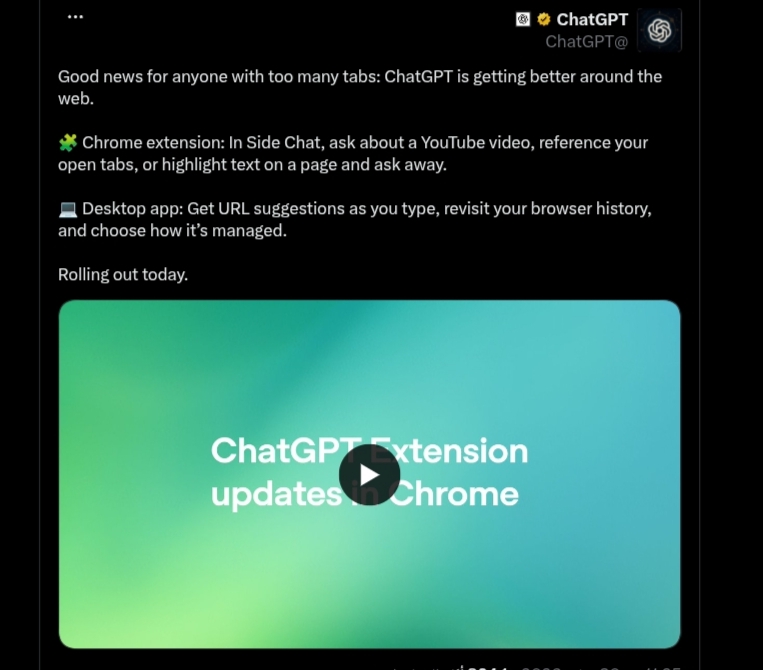
1. The Upgraded Chrome Extension: How AI Interacts with Your Active View
The Chrome extension has existed for some time, but the late July updates have significantly expanded its capabilities. The sidebar is now capable of interacting with your active webpage in three major ways:
• Quick Queries on Highlighted Text
What’s New: Highlight any paragraph on a webpage, right-click, and select “Ask ChatGPT” from the context menu. The side panel opens automatically to process your query, eliminating the need to copy and paste text into a separate tab.
How to Use It:
- Install the official ChatGPT extension from the Chrome Web Store (verify the official developer is OpenAI).
- Open any article or webpage and highlight the text you want to analyze.
- Right-click and select “Ask ChatGPT”.
- Enter your prompt (e.g., “Summarize this,” or “Translate to French”) in the sidebar.
- The response displays directly in the side panel without navigating away from your active tab.
• Interactive YouTube Video Queries
What’s New: When viewing a YouTube video, the sidebar can analyze and query its transcription directly. You no longer need to request a full transcript first; you can query specific content within the video immediately.
How to Use It:
- Open any YouTube video in Chrome.
- Launch the ChatGPT sidebar using the extension icon in your toolbar (or via the keyboard shortcut).
- Ask specific questions, such as: “At what minute does the speaker discuss the budget?” or “Extract the main three points from the first ten minutes.”
- The extension will process the video’s context and return targeted answers.
This is particularly useful for long-form lectures, interviews, and recorded webinars, allowing you to quickly extract relevant information without watching the entire video.
• Context Synthesis Across Open Tabs
What’s New: The sidebar can now reference and analyze the content of other open tabs within the same browser window, provided you grant permission.
How to Use It:
- Open the tabs you wish to compare (e.g., product pages, travel deals, or research articles).
- In the ChatGPT sidebar, use the “@Chrome” mention to reference active tabs.
- Input a prompt like: “Compare the open pages based on price, rating, and key features.”
- ChatGPT will pull context from the active tabs and provide a structured comparison in a single response.
According to OpenAI’s documentation, the tool only accesses the context of the specific tabs you authorize, maintaining privacy by avoiding background scraping of all open windows.
2. The Desktop App: Seamless Browser Integration on macOS and Windows
In tandem with the Chrome extension update, the desktop app has received improvements that allow it to function more like an independent browser.
• URL Autocomplete and Google Search Integration
What’s New: The address bar in the desktop app’s built-in browser now features auto-suggestions as you type. If the entered text is not a direct URL, it automatically redirects to Google Search.
How to Use It:
- Open the desktop app (use the shortcut Cmd+Shift+B on macOS or Ctrl+Shift+B on Windows to open the built-in browser).
- Type the name of a website, such as “openai,” and select from the auto-suggestions.
- Press Enter to navigate directly or to initiate a search.
• Retrieving Context from Browsing History
What’s New: The desktop app can search your browsing history. You can prompt the AI to find and open a specific page you visited earlier.
How to Use It:
- Ensure the “Browsing History” feature is enabled in the desktop app’s Settings.
- Enter a query such as: “Find the article about solar energy I read yesterday morning.”
- The app will search your history and prompt you for permission to access the target page. For security reasons, OpenAI does not offer a “permanent allow” option for history search, requiring explicit user approval per request.
• Secure Import of Passwords and Cookies
What’s New: The desktop app allows users to import saved passwords and cookies from Google Chrome, eliminating the need to log into websites repeatedly within the app’s built-in browser.
How to Use It:
- Go to the desktop app’s Settings, under Privacy or Browsing Data.
- Select “Import from Chrome” and follow the on-screen prompts.
While this offers a highly integrated workflow, it involves handling sensitive personal credentials, meaning users should manage these settings carefully.
3. The New Permissions System: Balances Leverage with Privacy
Because the extension requires broad permissions-such as reading site data, accessing browsing history, and communicating with local applications-OpenAI has implemented a localized permission model.
How Permissions Work:
- When you open the sidebar on a new website, a prompt displays four options: “Allow Once,” “Allow for this site,” “Allow for all sites,” or “Deny.”
- OpenAI’s documentation notes that choosing “Allow for all sites” is considered high-risk, as it bypasses the domain-level control mechanism.
- You can manage, block, or whitelist domains at any time in the Settings panel under “Computer Use.”
Security Advisory: OpenAI warns in its guidelines that web page content should be treated as untrusted input. Malicious websites can use indirect prompt injection (hidden text instructions targeting the AI model) to manipulate responses. As a result, the tool requires additional user confirmation before performing sensitive actions like downloading files or executing transactions.
4. Behind the Scenes: The Deprecation of Atlas and the Pivot to Chrome
The features introduced in the Chrome extension and desktop app were originally developed inside “Atlas,” OpenAI’s experimental standalone browser launched in October 2025 for macOS. On July 9, 2026, the company announced that Atlas would be deprecated on August 9, 2026, shifting its core agentic capabilities into Chrome and the desktop app.
For Atlas users, data like bookmarks, open tabs, and browsing history will not transfer automatically. Bookmarks must be manually exported (e.g., to an HTML file) and cookies/passwords imported to the desktop app before the August 9 deadline.
The retirement of Atlas highlights a clear product strategy. Building a standalone browser is a resource-heavy endeavor with a high user switching cost. Rather than convincing users to abandon Chrome-where they already have stored passwords, extensions, and bookmarks-OpenAI chose to deploy its browser-based agentic features directly into Chrome. This pivot allows the company to reach hundreds of millions of active users immediately while reducing browser maintenance overhead.
5. The Bigger Picture: ChatGPT Work and Agentic Productivity
These browser updates serve as the foundation for “ChatGPT Work,” a specialized agentic workspace announced by OpenAI on July 9, 2026. ChatGPT Work is designed to handle multi-step, long-running tasks across local files, web applications, and desktop tools.
The integrated browser and Chrome extension provide the necessary window for ChatGPT Work to interact with web services. This allows the agent to execute complex, scheduled workflows, such as: “Every Monday morning, pull the latest updates from the project’s Slack channels, organize them into Google Sheets, and generate a draft report.”
Are These Updates Globally Live?
The rollout is gradual. Early reviews and documentation indicate that availability depends on your current subscription plan, geographic region, device type, and workspace configurations. If you do not see the new sidebar options yet, they are likely being distributed in subsequent waves.
Key Takeaways for Getting Started
ChatGPT is transitioning from a passive conversational interface to an integrated tool built directly into your active workspace. To begin exploring these features safely:
- Only install the official ChatGPT extension from the Chrome Web Store.
- Manage permissions on a domain-by-domain basis, avoiding the “Allow for all sites” option.
- Test the YouTube analysis and multi-tab comparison features to streamline your daily workflow.
- If you are an Atlas user, ensure you manually export your data before August 9, 2026.
Ultimately, these updates offer deeper integration with daily workflows, and managing them with security in mind is key to a safe and effective experience.