OpenAI Adds Locked Chats to ChatGPT for Extra Privacy
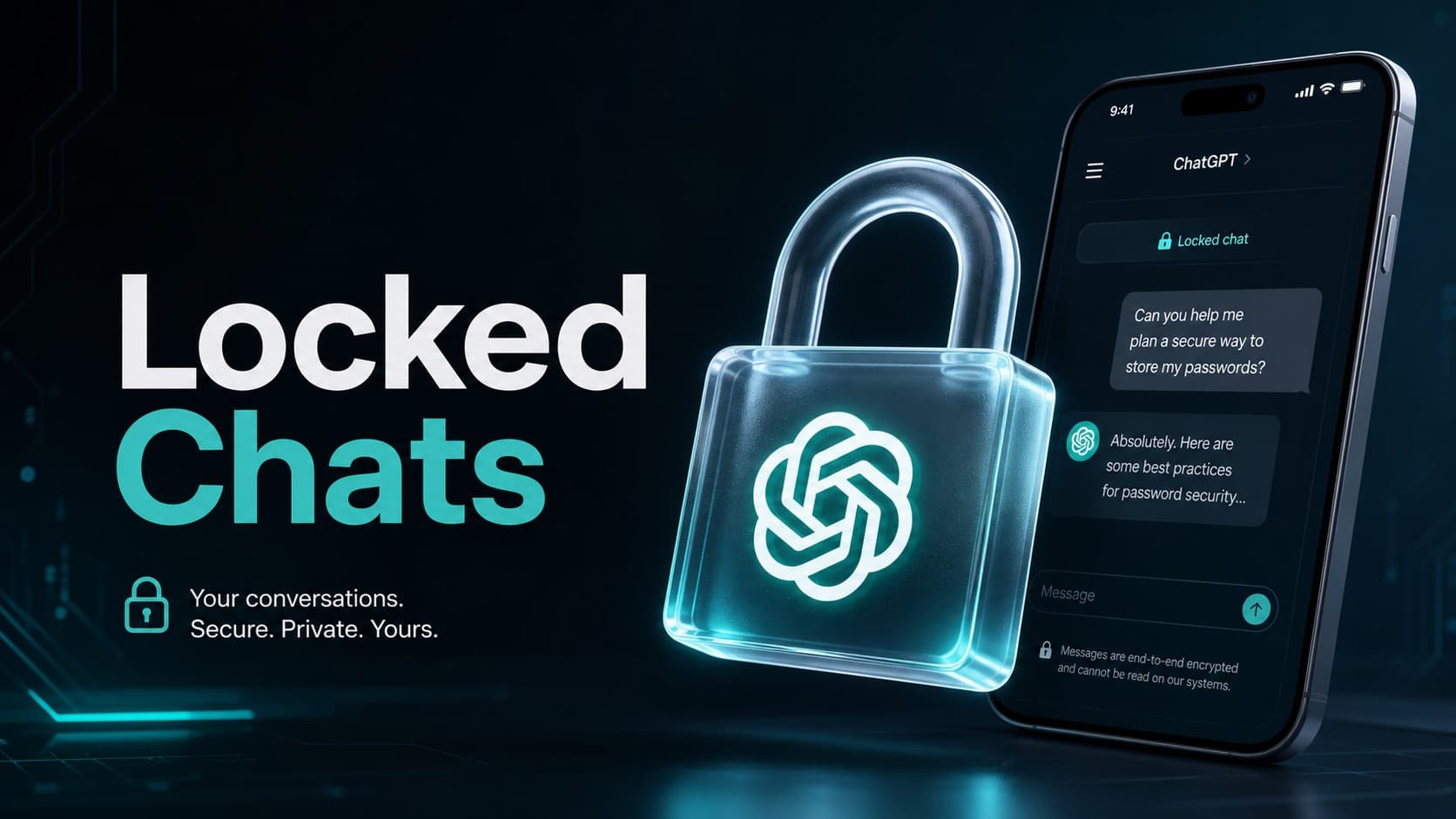
OpenAI has introduced Locked Chats, a new privacy feature that allows ChatGPT users to protect individual conversations with a four-digit PIN. The feature moves selected chats out of the regular conversation history and into a separate section, adding an extra layer of protection when someone else has access to a user’s device or account.
Announced on October 20, 2026, Locked Chats is designed for situations in which users want to keep personal discussions, sensitive information, or private plans out of view. For example, someone can lock a conversation before handing their phone to a friend or sharing their screen to show another ChatGPT conversation.
Unlike Temporary Chats, locked conversations remain saved in the user’s account and can be reopened later after authentication. However, the feature has important limitations, particularly regarding data protection, memory, and PIN recovery.
How ChatGPT Locked Chats Works
When a user locks a conversation, ChatGPT moves it to a dedicated Locked Chats section under Projects. The conversation’s title and content are removed from the regular chat history, pinned conversations, and standard conversation search.
Opening the locked section requires a four-digit account PIN. On supported mobile devices, users can also use authentication methods such as Face ID, Touch ID, or their device’s unlock method, depending on the platform.
The PIN is associated with the user’s OpenAI account rather than a particular device. This means the same account PIN can be used on supported devices where the user is signed in to that account. Biometric authentication, however, must be configured separately on each supported device.
Locked Chats is intended to prevent casual access to selected conversations without requiring users to delete them. The chats remain available in a separate area, allowing users to return to them whenever needed.
How to Lock a Conversation in ChatGPT
Locking an existing conversation involves a few steps:
- Open the ChatGPT conversation you want to protect.
- Select the three-dot menu next to the conversation.
- Choose Lock chat and confirm the action.
- Create a four-digit PIN if this is your first time using Locked Chats, or enter your existing PIN when prompted.
After the process is complete, the conversation moves to the Locked Chats section. Its title and content no longer appear in the regular chat list or standard conversation search, although search results may take some time to update.
Users can then access their protected conversations by opening Projects, selecting Locked Chats, and completing the required authentication.
ChatGPT also provides a Lock now option that immediately ends access to the locked section. This is useful when someone finishes viewing a private conversation and wants to hide it again without waiting for the session to close automatically.
Access behavior differs by platform. On the web and desktop apps, authentication applies to the browser tab or app window where the user opened Locked Chats. Access can end when the user refreshes or closes the browser tab, while the mobile apps automatically relock access after a period of inactivity or when the app remains in the background.
Users should also be aware that a conversation already open on another device may remain visible until that device’s conversation list refreshes. Locking a chat therefore does not guarantee that its title or previously loaded content immediately disappears from every active session.
Can You Permanently Unlock a Locked Chat?
Yes. Users can permanently unlock a conversation whenever they want to return it to their regular chat history.
To do so, open the conversation from Locked Chats, select its three-dot menu, and choose Unlock chat. Confirm the action to complete the process.
The conversation then returns to the regular chat history, although it may take some time to reappear in search results. If the chat originally belonged to a Project, unlocking it returns the conversation to the regular history rather than automatically restoring it to its previous Project.
Files protected by the conversation may also become visible in Space again if they were previously saved there. In addition, the conversation may become eligible for regular ChatGPT Memory, depending on the user’s settings and applicable workspace policies. Memories created specifically within Locked Chats are not automatically transferred to regular Memory when a conversation is unlocked.
What Locked Chats Does Not Protect
Although the feature adds an extra access barrier, it is important to understand what it actually changes. Locked Chats controls where selected conversations appear and how users reopen them. It does not create a separate encrypted vault or introduce end-to-end encryption.
Locking a conversation also does not change OpenAI’s data-retention practices or automatically modify the user’s Improve the model for everyone setting. Users who want to change how their conversations may be used to improve OpenAI’s models must review that setting separately.
The feature also does not erase information ChatGPT remembered before a conversation was locked. If the system had already saved details from a conversation to regular Memory, locking that chat does not automatically remove those details.
Locked Chats should therefore be viewed as a way to reduce the visibility of selected conversations, rather than a guarantee that their contents are inaccessible to everyone else or that the underlying data is stored under a separate encryption system.
Users should continue to protect their ChatGPT accounts and devices, particularly when handling confidential information. Anyone who can open a locked conversation can still copy its contents, and the feature does not replace broader account security measures.
How Locked Chats Handles Memory and Files
ChatGPT Memory and uploaded files have their own rules within Locked Chats, making this an important consideration for users who rely on the service to retain information.
When Memory is enabled, locked conversations can use relevant information from regular Memory. However, new information remembered within Locked Chats is kept separate from regular Memory and can be shared across conversations within the locked section.
This separation helps prevent new information from locked conversations from automatically carrying over into ordinary chats. However, it does not remove information that ChatGPT remembered before the conversation was locked.
Files uploaded or created within a locked conversation are also protected by the feature. While the conversation remains locked, those files are hidden from Space and its search results and are not available for use in other chats, including other locked conversations.
Files added separately to Space remain available under their existing access rules. Locking a conversation does not automatically protect every file in the user’s account, and files originating from connected sources continue to follow their existing permissions.
These distinctions matter for users who store documents, personal information, or work materials in ChatGPT. Locking a conversation protects the files associated with that chat, but it should not be treated as a way to secure all account content at once.
What Happens If You Forget Your ChatGPT PIN?
One of the most significant limitations of Locked Chats concerns PIN recovery.
If a user forgets their account PIN, resetting it permanently deletes all locked conversations, along with information remembered exclusively within those conversations and files or other content protected only by the previous PIN. The deletion cannot be undone, and OpenAI Support cannot recover the deleted content.
This makes the PIN more than a simple access code. Users should understand the consequences of resetting it before relying on Locked Chats to store important discussions or documents.
There is an important distinction between changing and resetting the PIN. Users who still know their current PIN can change it without deleting their locked conversations. Resetting a forgotten PIN, however, triggers the permanent deletion of the protected content.
For this reason, users should choose a PIN they can reliably remember and avoid treating Locked Chats as the only place to keep important information.
Which ChatGPT Conversations Cannot Be Locked?
Locked Chats does not support every conversation type. The locking option is unavailable for several categories, including:
- Temporary Chats.
- Archived conversations.
- Group chats.
- Conversations created from shared links.
- Chats with scheduled tasks.
- Chats containing meeting recordings.
- Chats associated with background tasks.
- Chats with responses saved as Project sources.
Codex conversations, including cloud Codex conversations, and local Work conversations also cannot be locked. Some Project conversations may have different eligibility depending on the platform.
There is also an important distinction involving shared links. An otherwise eligible conversation that already has a shared link can be locked, but locking it does not delete the link or revoke access to content that was shared previously. Users who want to prevent others from accessing that shared content must delete the link separately.
These restrictions mean that users may not see the Lock chat option for every conversation. If the option is missing, the chat type or the platform being used may not be supported.
Which ChatGPT Plans and Devices Support Locked Chats?
OpenAI is rolling out Locked Chats gradually across ChatGPT Free, Go, Plus, Pro, Business, Enterprise, and Edu plans. The feature is not available on ChatGPT for Healthcare.
Supported access varies by platform. Users can access locked conversations on the web and supported mobile apps, while desktop access is available through the newer ChatGPT applications for macOS and Windows. Some features, including Voice, may also vary depending on the device and app.
The rollout is gradual, so the Lock chat option may not appear in every eligible account immediately. Users who do not see it may need to wait until the feature becomes available to their account.
For organizations using ChatGPT Business, Enterprise, or Edu, Locked Chats does not override workspace policies, compliance requirements, or authorized administrative access to workspace data. Enterprise and Edu conversations may still be included in message logs available through the OpenAI Compliance Platform.
The feature also does not give workspace administrators the ability to unlock a user’s conversations or reset their account PIN on their behalf.
Locked Chats vs. Temporary Chats: What’s the Difference?
Locked Chats and Temporary Chats serve different purposes, even though both can help users keep certain conversations separate from their regular chat history.
Locked Chats is designed for conversations users want to save and revisit while restricting access through a PIN or supported device authentication. These conversations remain in the account and are available from the dedicated Locked Chats section.
Temporary Chats, by contrast, are intended for conversations that do not appear in regular history in the same way as standard chats. Temporary Chats do not create or update Memory and are not used to improve OpenAI’s models while they remain temporary, subject to the service’s applicable data-handling policies.
The two features also differ in how they handle model-improvement settings. Locked Chats follows the user’s existing setting and does not change it automatically.
Temporary conversations cannot simply be locked while they remain temporary. Saving a temporary conversation converts it into a regular chat, which then follows the account’s personalization and model-improvement settings.
The right option depends on the user’s needs. Locked Chats is more suitable for keeping a conversation available for future use while limiting its visibility, whereas Temporary Chat is intended for conversations that users do not want handled as ordinary saved chats.
Is ChatGPT Locked Chats Enough to Protect Private Conversations?
Locked Chats addresses a practical privacy concern: ordinary ChatGPT conversations can remain visible in a chat list when someone else briefly uses an unlocked device or views the screen. Moving selected conversations into a separate section behind a PIN gives users more control over what appears in the regular interface.
However, the feature has clear boundaries. It does not add end-to-end encryption, change data-retention rules, automatically erase previously saved memories, or override workspace compliance requirements. Some conversation types are also excluded, and resetting a forgotten PIN permanently deletes the content protected by the previous PIN.
Users should also remember that locking a chat does not necessarily hide content that was already visible on another active device, nor does it revoke an existing shared link.
Overall, Locked Chats is a useful addition for people who want to keep selected ChatGPT conversations out of casual view without deleting them. Its value lies in controlling access through the interface, while users still need to understand the feature’s limitations and maintain appropriate security practices for their accounts and devices.